
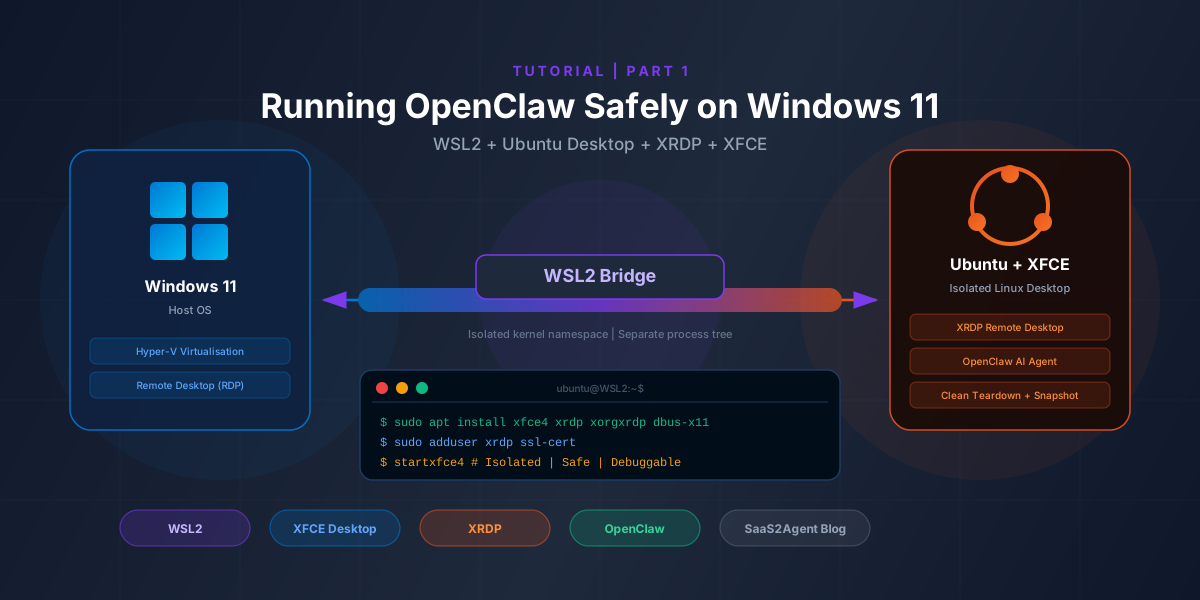
If you've been following OpenClaw, (formerly MoltBot, formerly ClawdBot), you already know the uncomfortable part.
This isn't just another chatbot.
It wants real system access. Files. Background processes. Integrations.
And giving any AI that level of control directly on your main OS should make you pause — even if you trust the tool.
We needed a setup where:
- MoltBot could run freely
- The Windows host stayed isolated
- And when (not if) something broke, the team could debug it without nuking the system
This is the path we landed on: WSL2 + a full Ubuntu desktop + XRDP + XFCE.
It worked — but not without a few traps along the way. This post documents the entire setup, including the black screens, broken browsers, and daemon issues we encountered so you don't have to.
Why We Don't Run MoltBot Directly on Windows
MoltBot is powerful, but that power comes with responsibility.
Running it directly on Windows is problematic for a few reasons:
- Too much surface area if something goes sideways
- Harder to reason about what the agent is touching
- No clean isolation boundary
WSL2 gives you a natural sandbox:
- A separate Linux environment
- Clean process separation
- Easy teardown if needed
Adding a lightweight desktop on top makes MoltBot easier to inspect, configure, and reason about visually — without sacrificing safety.
Step 0: Installing Ubuntu in WSL2
Start simple.
Install Ubuntu from the Microsoft Store. On first launch:
- You'll create a Linux username and password
- You'll land in a terminal
There's no desktop yet. That's expected.
Step 1: Installing XFCE and XRDP
Inside the Ubuntu terminal, install the GUI stack:
sudo apt update
sudo apt install -y xfce4 xfce4-goodies xrdp xorgxrdp dbus-x11
This gives you:
- XFCE (lightweight and predictable)
- XRDP (Remote Desktop access)
- Xorg backend support
- DBus (required for many desktop apps)
When prompted for a display manager, choose lightdm.
Tip: In WSL environments, lighter almost always means fewer surprises. LightDM plays much nicer here than GDM.
Step 2: Cleaning Up XRDP Permission Warnings
XRDP often complains about TLS key permissions.
Instead of ignoring it, fix it properly:
sudo adduser xrdp ssl-cert
sudo service xrdp restart
This avoids subtle failures later.
Step 3: Connecting via Windows Remote Desktop
On Windows, open Remote Desktop Connection and connect to:
localhost:3389Log in with your Ubuntu credentials.
If everything works, you'll see an XFCE desktop.
On a first attempt, most setups will show… a black screen.
Debugging the XRDP Black Screen (The Real Work)
A black screen after login usually means XRDP authenticated successfully, but the desktop session failed to start correctly.
First: Check the XRDP Logs
sudo tail -n 200 /var/log/xrdp.log /var/log/xrdp-sesman.logYou're looking for:
- Successful login messages
- Xorg starting on a display like
:10
If that's present, XRDP itself is fine.
Then: Check Session Errors
tail -n 200 ~/.xsession-errorsThe smoking guns in our debugging were:
- Attempts to open
wayland-0 - "Could not open X display"
- Conflicts on display
:10
Translation: the session was trying to use Wayland when XRDP expects X11.
Clearing Stale Sessions
sudo pkill -u $USER
sudo rm -f /tmp/.X10-lock /tmp/.X11-unix/X10
(Replace $USER with your Linux username if running outside a shell.)
Forcing XFCE to Start Cleanly
We create a dedicated ~/.xsession to explicitly control what starts:
cat > ~/.xsession <<'EOF'
#!/bin/sh

unset WAYLAND_DISPLAY
unset XDG_SESSION_TYPE

export XDG_RUNTIME_DIR="/run/user/$(id -u)"
mkdir -p "$XDG_RUNTIME_DIR"
chmod 700 "$XDG_RUNTIME_DIR"
chown "$(id -u)":"$(id -g)" "$XDG_RUNTIME_DIR"

if command -v dbus-launch >/dev/null 2>&1; then
  eval "$(dbus-launch --sh-syntax --exit-with-session)"
fi

exec startxfce4
EOF

chmod +x ~/.xsession
Then we make XRDP always respect it:
sudo cp /etc/xrdp/startwm.sh /etc/xrdp/startwm.sh.bakThis ensures XRDP loads your custom session file every time, avoiding the Wayland vs X11 conflict that causes the black screen.
What's next: In Part 2, we'll cover installing and configuring OpenClaw (MoltBot) inside this isolated environment, setting up the agent toolchain, and running your first automated workflow.